Some web work never runs in a browser tab. It plays inside a slide during a talk, or sits by the clock on an office PC and writes rows into the spreadsheet everyone already uses. Each of those hosts has its own rules, and none of them is written down in one place: the slide's browser blocks the network and paints a white frame first, a script started from Explorer has no console to print to, and Excel holds a workbook open while someone reads it.
These rules come from two of the owner's tools. One rebuilt a slide deck so that every slide is a live web page inside a PowerPoint content block, with WebGPU effects, a still picture for anyone who can't run it, and a presenter's clicker. The other is a document-reading tool with a web interface that is installed per user on office PCs, waits in the tray and appends rows to a workbook. What it reads and why is in the ingest playbook; this one is about the host around it. Rules marked always protect people's data and hold; the defaults are where to start, and you may break one when you can say why; ideas are suggestions.
Before you start
- (default) A slide page is one self-contained file: scripts, styles, fonts and pictures inline, nothing fetched.
- (default) Every slide page draws something good with WebGPU, with WebGL2 and with neither, and has a still mode for its fallback picture.
- (default) Settings a slide needs are baked into its page at build time, never shared through storage.
- (default) Each slide page paints its background colour from its first byte, the same colour as the slide behind it.
- (default) Each slide page hands the keyboard back to PowerPoint after a click.
- (default) The desktop tool installs per user, with no admin rights, and keeps its data outside the program folder.
- (default) Starting the tool a second time shows the running one; it never starts a second server.
- (default) Closing the window leaves the tool working in the tray, and Quit is in the tray menu.
- (default) Start with Windows is one registry value, written the same way by the installer and the app, and removed on uninstall.
- (always) A workbook is written to a copy and renamed over the old one, never saved in place, so a crash or a full disk never leaves people with half a workbook.
- (always) A workbook that is open in Excel makes the row wait; it is never an error that loses the row, because the row is someone's work.
- (default) A new row takes its formatting from the data row above it.
Slides: how a content block stores its page
A PowerPoint content block is a built-in Microsoft web add-in (the Copilot Content Block, fa000000210 from the sdxcatalog store) that shows one HTML page across the slide. A .pptx is a zip, and the block lives in three parts of it:
| Part | What it holds |
|---|---|
ppt/slides/slideN.xml | the block's frame, named Copilot Content Block, with the alt text in its descr attribute (twice) |
ppt/webextensions/webextensionN.xml | the page itself, in the property contentBlockHtml, and the block's id |
ppt/media/… (through the web extension's own .rels) | the fallback picture: what PowerPoint shows until the page is live, and all anyone sees where blocks can't run |
The page is stored as a JSON string literal, XML-escaped. Escape everything outside ASCII as \uXXXX first, so the value survives any encoding on the way:
const xmlEsc = (s) => s.replace(/&/g, '&').replace(/</g, '<').replace(/>/g, '>').replace(/"/g, '"');
const value = xmlEsc(JSON.stringify(html).replace(/[\u007f-]/g, (c) => '\\u' + c.charCodeAt(0).toString(16).padStart(4, '0')));
// then replace what is between <we:property name="contentBlockHtml" value=" and " in the web extension partStart from a deck in which PowerPoint itself inserted a block, and swap the page, the picture and the alt text. Copy every other part byte for byte, in the zip's original order, and assert that each pattern matched exactly as often as expected, so a changed file fails the build instead of producing a deck that half works. For more than one live slide, give each its own web extension part with a fresh GUID in <we:webextension id="{…}">, its own picture, an Override with application/vnd.ms-office.webextension+xml in [Content_Types].xml, and fresh a16:creationId values on the copied slide.
Tried on the live deck. The format is undocumented. Microsoft could start validating or cleaning the property in an update, so the fallback picture is kept as good as the page: it is also what the slide sorter, thumbnails and a PDF export show.
Slides: the browser inside
Make one diagnostics slide before building anything, and run it on the PC that will present. The deck's probe slide only looks: it reports the engine, the GPU tier, storage, network, workers, permissions and whether keys arrive, and copies a report. On the author's PowerPoint it found:
| Engine | Edge WebView2 156 (Chromium) |
| Graphics | WebGPU available, on an RTX GPU at 144 Hz |
| Network | blocked |
| Web Workers, clipboard | blocked |
localStorage | works, but sealed per block (next section) |
| Pointer and keys | clicks and moves reach the page in edit view and in Slide Show; keys only once the slide was clicked |
| Size | about 1076 × 605 CSS px at DPR 1.10 in edit view; full screen in Slide Show |
What that means for the page:
- (default) Scale, never lay out in pixels. The same page shows at two sizes. The deck sets
--vwand--vhfrominnerWidthandinnerHeightin a tiny script in<head>and sizes everything withcalc(n * var(--vw)). - (default) Three tiers, never a blank slide. WebGPU, WebGL2 and plain CSS or SVG, as capability tiers picks them. Another presenting PC may have a weaker GPU or none.
- (default) A
?snapshotmode hides the controls and draws a fixed, good-looking still. A headless browser takes the fallback picture from it. - (default) The page is never told it is being left. It can't fade itself out: use PowerPoint's own Fade transition between live slides (Slow gives the next one time to load behind it).
- (default) Run the deck through once on the presenting PC. The first time a PC draws an effect, it pauses 0.2–0.8 s while shaders compile, and PowerPoint keeps its own shader cache, apart from the browser's. See compile without stalls for the warm-up itself.
Slides: no network, sealed storage
Nothing loads. No CDN, no web fonts, no images by URL. Inline the scripts at build time (the build refuses a shared script that contains </script>, which would end the inline tag), draw pictures in canvas, SVG or a shader, or embed small ones as data: URIs, scaled down first. Fonts come from the PC: name a stack that ends in fonts every Windows PC has.
Every block has its own storage. localStorage works, but a slide sees only what it wrote itself, never what another slide wrote. A storage test deck (three slides, each writing a key and listing every key it could see, plus a BroadcastChannel hello) showed it on 2026-10-31. So:
- (default) Settings chosen for the whole deck (a look, a motion preset) are baked into every page when the deck is built. A settings slide that writes to storage would reach only itself.
- (default) Slides can't warm each other up. Each page waits for its own fonts and first GPU frame (capped, so a slow GPU can't hold it back) before its entrance plays.
Slides: the white first frame
PowerPoint shows the block's fallback picture, then, for about a quarter of a second while it starts the page's browser, a white frame, then the page. On a dark deck that is a flash on every live slide.
- (default) The page: paint the ground colour from the first byte. Put the colour on
<html>in the first<style>, before the inlined fonts and scripts, and give the slide behind it the same solid background. - (default) The picture: a fallback picture of the empty stage, not the finished slide, makes the slide fade in from its ground colour and draw itself once. The finished slide as the picture flashes the end state before the entrance plays.
- The frame itself: nothing in the file covers it. PowerPoint draws the live browser above every shape (a fading cover picture was tried on 2026-11-02 and stayed underneath), and a slide transition ends before it.
What may help is a launcher on the presenting PC. WebView2 reads WEBVIEW2_DEFAULT_BACKGROUND_COLOR (AARRGGBB in hex) for every browser it creates, so a script that sets it and then starts PowerPoint can make that frame start in the deck's colour:
# The deck's ground colour: the first solid slide background in the .pptx (a zip).
while (Get-Process POWERPNT -ErrorAction SilentlyContinue) {
  Read-Host 'Close every PowerPoint window first (save your work), then press Enter' | Out-Null
}
$env:WEBVIEW2_DEFAULT_BACKGROUND_COLOR = 'FF' + $ground   # opaque, then RRGGBB
Start-Process -FilePath 'POWERPNT.EXE' -ArgumentList ('"' + $Deck + '"')
It reaches PowerPoint only when the script starts it: a PowerPoint already running opens the deck in itself, without the setting, so the launcher waits until there is none. It works only on the PC that runs it.
As of November 2026, whether the launcher removes the white frame was not yet confirmed: Office's own frame might still paint white over it. Treat it as worth trying, and look at a live slide before the talk.
Slides: focus back to the clicker
Once someone clicks into a live slide, the block keeps the keyboard. A presenter's clicker sends arrow or page keys, and from then on they land in the page instead of PowerPoint: the talk is stuck on that slide.
So every page gets a small script, added by the build before </body>, that gives the keyboard back:
var DELAY = 1200; // after the last click or drag
var NAV = { ArrowRight: 1, ArrowLeft: 1, ArrowDown: 1, ArrowUp: 1, PageDown: 1, PageUp: 1, Home: 1, End: 1, Escape: 1 };
function handBack() {
  if (pointerDown) return schedule();                  // still dragging: try after the release
  if (typing(document.activeElement)) return;          // someone is typing in a field: leave it
  try { document.activeElement.blur(); } catch (e) {}
  try { window.blur(); } catch (e) {}
  try { if (window.parent !== window) window.parent.focus(); } catch (e) {} // allowed across origins
  try { if (window.top !== window.parent) window.top.focus(); } catch (e) {}
}
addEventListener('keydown', function (e) {
  if (NAV[e.key] && !typing(document.activeElement)) handBack(); // a clicker key: give it back at once
  else schedule();                                                 // Space and Enter stay with the page's buttons
}, true);
focus() is one of the few calls a cross-origin frame may make on its parent, which is why it is the lever. The rules around it matter as much: wait while a drag is still going, never take the keyboard from a text field, and keep Space and Enter for the page's own buttons.
Not confirmed. The sources record that keys reach the slide once it is clicked, and the hand-back ships in every slide, with a counter the probe slide shows. They don't record a test of a clicker in Slide Show with it. Try it on the presenting PC: click the probe slide, press → twice, and the second press should move the slide.
Where PowerPoint isn't required, the slide-show player presents HTML slides in a browser and owns every input itself.
Desktop: build it, then install it per user
The document tool is Python (a FastAPI server and a web interface). It ships as an installer that needs no Python and no admin rights:
- PyInstaller freezes it into a folder (
dist/<App>/), windowed (console=False), with the web interface, the seed files and the icon as data, and a version resource so Windows' Installed apps shows the version. - Inno Setup 6 packs that folder into one
Setup-<version>.exe(about 35 MB) for the current user. - One script runs both, after importing the app once with
-W error::SyntaxWarning, so a mistake fails the build and not the installed program.
[Setup]
PrivilegesRequired=lowest
DefaultDirName={localappdata}\Programs\App
DisableDirPage=yes
CloseApplications=no            ; the [Code] below stops a running copy itself

[UninstallDelete]
Type: filesandordirs; Name: "{app}" ; program files only: the data stays- (always) Data lives apart from the program. Settings, the database and logs go in
%LOCALAPPDATA%\App, and the folders people use go in their Documents (found with the shell's own lookup, since OneDrive can redirect Documents). Reinstalling, updating and uninstalling never touch them, because they are people's own work, not the program's. Bundled read-only files are found throughsys._MEIPASS. - (default) A windowed program has no console.
sys.stdoutisNone, so everyprintand traceback would vanish. Point them at a log file in the data folder at start-up, and show start-up failures in a message box. - (default) List what PyInstaller can't see. The server's submodules (
collect_submodules("uvicorn")) and the tray's Windows back end (pystray._win32) are hidden imports; exclude what the app doesn't need. - (default) Stop the running copy before an update. The installer checks the app's named mutex (
CheckForMutexes), ends the program for this user only (taskkill /FI "USERNAME eq …"), waits for the mutex to go, and forces it only if it hasn't. - (default) Unsigned means a warning. Without a code-signing certificate, Windows says Windows protected your PC the first time; the person clicks More info → Run anyway, or IT approves or deploys it. Say so in the instructions.
Desktop: the window is Edge in app mode
Don't bundle a browser. Every Windows 11 PC has Microsoft Edge, and --app=<url> opens it as a plain window with no address bar or tabs:
subprocess.Popen([edge, f"--app={url}", f"--user-data-dir={HOME / 'window'}", "--no-first-run",
                  "--no-default-browser-check", "--window-size=1440,920"],
close_fds=True, creationflags=subprocess.DETACHED_PROCESS)- (default) Find Edge through the
App Paths\msedge.exeregistry key (current user, then machine), then the usual install folders. Without it, open the default browser. - (default) A profile of its own (
--user-data-dir) keeps the app's window, storage and settings apart from the person's own browsing. - (always) The server listens on
127.0.0.1only, on a preferred port, or one the system picks when that is taken. Start it on a thread and wait until/api/statusanswers (up to 30 s) before opening the window. Listening any wider would let other machines reach people's documents. - (default) To bring the window back, find the visible top-level window whose class starts with
Chrome_WidgetWinand whose title holds the app's name, restore it if minimised and bring it to the front. That is why the page's<title>must contain the app's name.
Desktop: one instance
Double-clicking the icon again must not start a second server writing the same files. A named mutex settles it:
_k32.CreateMutexW.restype = wintypes.HANDLE
handle = _k32.CreateMutexW(None, False, "App-SingleInstance")  # same name in the installer's [Code]
running = _k32.GetLastError() == 183                           # ERROR_ALREADY_EXISTS
globals()["_mutex"] = handle                                   # held for the life of the process
The first copy writes its URL to instance.json in the data folder. A second copy reads it, checks that the server answers (waiting up to 20 s, since the first may still be starting), shows its window and exits. If nothing answers, it says so in a message box instead of starting another.
Desktop: the tray
Closing the window must not stop the work. The process lives in the tray (pystray), and the window is only a view of it:
- (default) The menu: Open (the default item), shortcuts to the folders people use, a ticked Start with Windows, and Quit, which closes the app's windows, stops the server and removes the icon.
- (idea) The tooltip says how many items need a person, re-read every 15 seconds, and a Windows notification pops up when that number goes up.
- (default) The tray must not die. Wrap the status read in its own
try: an error is logged and the next round tries again.
Desktop: start with Windows
One value, per user, no admin rights: HKCU\Software\Microsoft\Windows\CurrentVersion\Run, set to "<exe>" --background. With --background the app starts in the tray only, so logging on doesn't open a window, but the folder is watched.
Write that one value from three places, the same way: an installer task, the tray's tick box and a switch in the app's settings. Offer the switch only in the installed app (sys.frozen); from source there is no single program to start. Let the uninstaller remove the value even when its own task didn't create it, since the app may have:
[Registry]
Root: HKCU; Subkey: "Software\Microsoft\Windows\CurrentVersion\Run"; ValueType: string; ValueName: "App"; ValueData: """{app}\App.exe"" --background"; Tasks: autostart; Flags: uninsdeletevalue
Root: HKCU; Subkey: "Software\Microsoft\Windows\CurrentVersion\Run"; ValueName: "App"; Flags: uninsdeletevalue dontcreatekey
Loopback is not private from the browser. Listening on 127.0.0.1 keeps other machines out, but not web pages open in the same person's browser, which can send requests to it. The document tool checks nothing more. A tool that writes files should also refuse a Host that isn't loopback and an Origin that isn't its own, as the LAN remote does.
Workbooks: replace, never write in place
The tool appends one row per document with openpyxl: open the workbook, write the row, save. Save to a copy beside it and rename that over the original, so a crash or a full disk never leaves half a workbook:
class ExcelLocked(Exception):
    """The workbook is open in Excel (or locked by sync): try again later."""

def save(wb, path: Path) -> None:
    tmp = path.with_name(f"~app-{os.getpid()}-{path.name}")  # same folder: the rename stays on one drive
    try:
        wb.save(tmp)
        os.replace(tmp, path)  # fails while Excel holds the file open
    except PermissionError as e:
        tmp.unlink(missing_ok=True)
        raise ExcelLocked(str(e)) from e
ExcelLocked is a wait, not a failure. The row stays pending with the reason open in Excel, is tried again on every watcher round and on Try now, and is written when the file is closed. Opening the workbook for writing can raise the same PermissionError; turn it into the same wait.
Reading is different: openpyxl.load_workbook(path, read_only=True) reads a workbook even while it is open in Excel, so the duplicate check (in the ingest playbook) still works. Cache what it read by the file's time and size, and read it again only when either changes.
openpyxl rewrites the whole file and keeps only what it understands; its own documentation warns that it doesn't read everything an Excel file can hold, so shapes and some other parts are lost on save. Write workbooks the tool owns, not ones people have decorated.
Workbooks: Excel's lock file
While Excel has Book.xlsx open, a small hidden ~$Book.xlsx sits beside it.
- (default) Skip it (and your own
~app-…copies) when listing the workbooks in a folder, or a lock file is read as a workbook. - (default) Show it. A workbook with a lock file beside it is listed as open in Excel, so people see why a row waits.
- (default) Let the rename decide. The lock file is a sign for people; whether the file can be written is settled by trying the replace. Don't write past a lock file, and don't treat a missing one as permission.
Two PCs saving the same workbook through a synced folder break it. Let one PC write, as the ingest playbook's last section sets up.
Workbooks: styles from the row above
People format the data rows by hand: fills, number formats, borders, fonts. A row added in the tool's plain default would stand out in the sheet. So a new row copies each cell's style from the row above, as long as that row is a data row and not the header:
for i, (col, v) in enumerate(zip(template["columns"], values), 1):
    cell = ws.cell(row, i, resolve(v, row))      # "=SUM(F{row}:H{row})" gets this row's number
    above = ws.cell(row - 1, i) if row > data_start else None
    if above is not None and above.has_style:
        cell._style = above._style               # whatever formatting people gave the data rows
    else:
        cell.font = Font(name=font_name, size=font_size)
    if col.get("number_format"):
        cell.number_format = col["number_format"]
    elif isinstance(v, str) and not v.startswith("=") and cell.number_format == "General":
cell.number_format = "@" # a text value gets the Text format- (default) Find the last row by its values, scanning up from
max_rowfor a row with any value in the template's columns:max_rowcounts rows that only have formatting. - (default) Formulas follow their row. A template formula with
{row}gets the new row's number. When a column is inserted or moved, the exact zoom sheet entry rewrites formulas to match ($anchors, ranges,#REF!).
Try to break it
- (default) Present the probe slide on the presenting PC, and copy its report before building anything else.
- (default) Unplug the network and show every live slide: nothing is missing.
- (default) Force each slide to WebGL2 and to no GPU: each still makes its point.
- (default) Click into a live slide, then use the clicker: the talk moves on.
- (default) Open the deck on a PC whose PowerPoint can't run content blocks: the fallback pictures read well.
- (default) Start the desktop tool twice: one window, one server.
- (default) Close its window, drop a file in the inbox: it is processed, and the tray says so.
- (default) Log off and on with Start with Windows ticked: it is in the tray, with no window.
- (always) Uninstall, then check the Run key and the data folder: the value is gone, the data is kept, because people's data must outlive the program.
- (always) Open the workbook in Excel, then drop a file: the row waits, and is written when Excel closes it; a row lost here is someone's work lost.
- (always) End the tool while it writes (Task Manager): the workbook still opens, and holds the row or not, never half, since a half-written workbook can take every row with it.
Parts that show it
 Systems & tooling
 Techniques
Compile without stalls
Shaders and pipelines built ahead, never on the frame that first draws something.
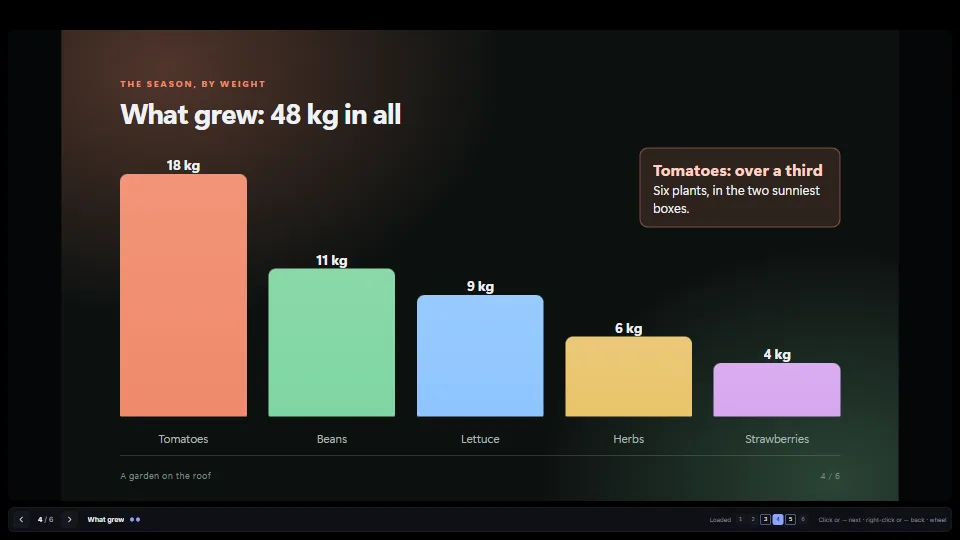 UI & interaction
Slide-show player for HTML slides
Plays a deck of HTML slides the way PowerPoint presents.
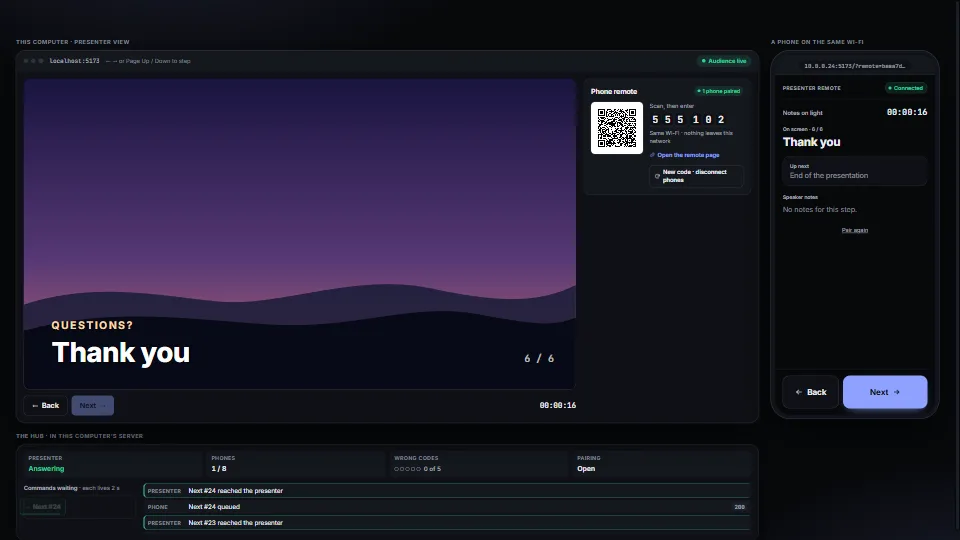 Systems & tooling
LAN phone remote
A phone on the same Wi-Fi steps a presentation, with no cloud and no app: scan a QR code, type a six-digit code, and Next and Back go to the presenting machine.
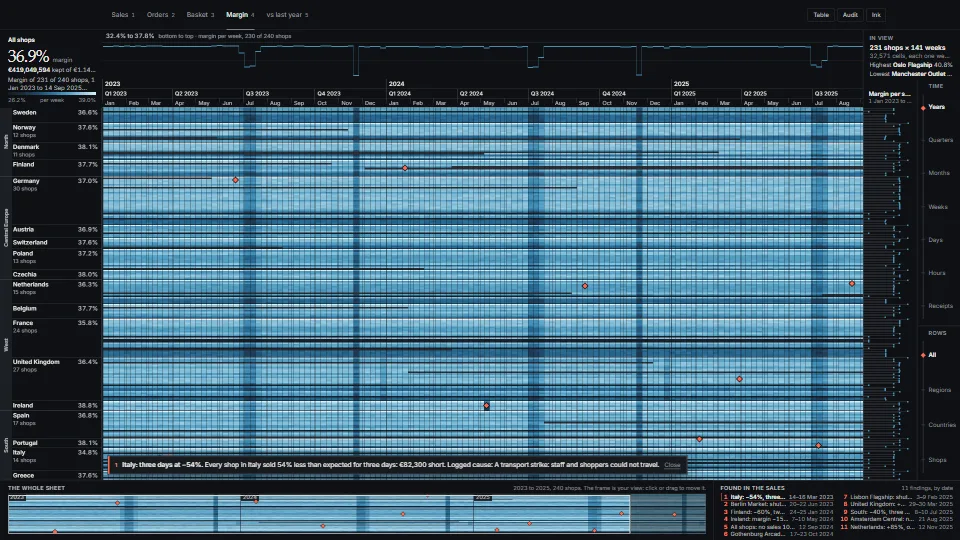 Data & layout
A sheet that adds up at any zoom
One zoomable sheet of rows × days, from three years of a whole organisation down to the records of one hour, where every pixel shows the true total of what it covers.